Do this first
- 01Update to Patch 8 or later before looking for the control.
- 02Open Photo Mode with F9, both analog sticks, or the HUD icon.
- 03Choose the party member, summon or Wild Shape form that should be the subject.
- 04Adjust camera, lens, scene, pose and facial expression before adding frames or stickers.
- 05If controls are missing, identify whether the game is in exploration, combat, dialogue or a cinematic.
Open the correct Patch 8 tool
Larian added Photo Mode in Patch 8. The default shortcuts are F9 on PC and pressing both analog sticks on console; the HUD also carries a Photo Mode icon near the minimap.
If none of those routes appears, confirm the installed game version before changing controller bindings or removing mods. A pre-Patch-8 client does not contain the native tool.
Compose an exploration or combat shot
While adventuring with the party, Photo Mode can change the camera position and scene settings and can pose characters with facial expressions. Larian explicitly includes summons and party members in Wild Shape among the subjects you can arrange.
Choose one subject first, move the camera second, and only then add depth, colour grading, frames or stickers. This order prevents a visual effect from hiding a weak composition.
Respect dialogue and cinematic limits
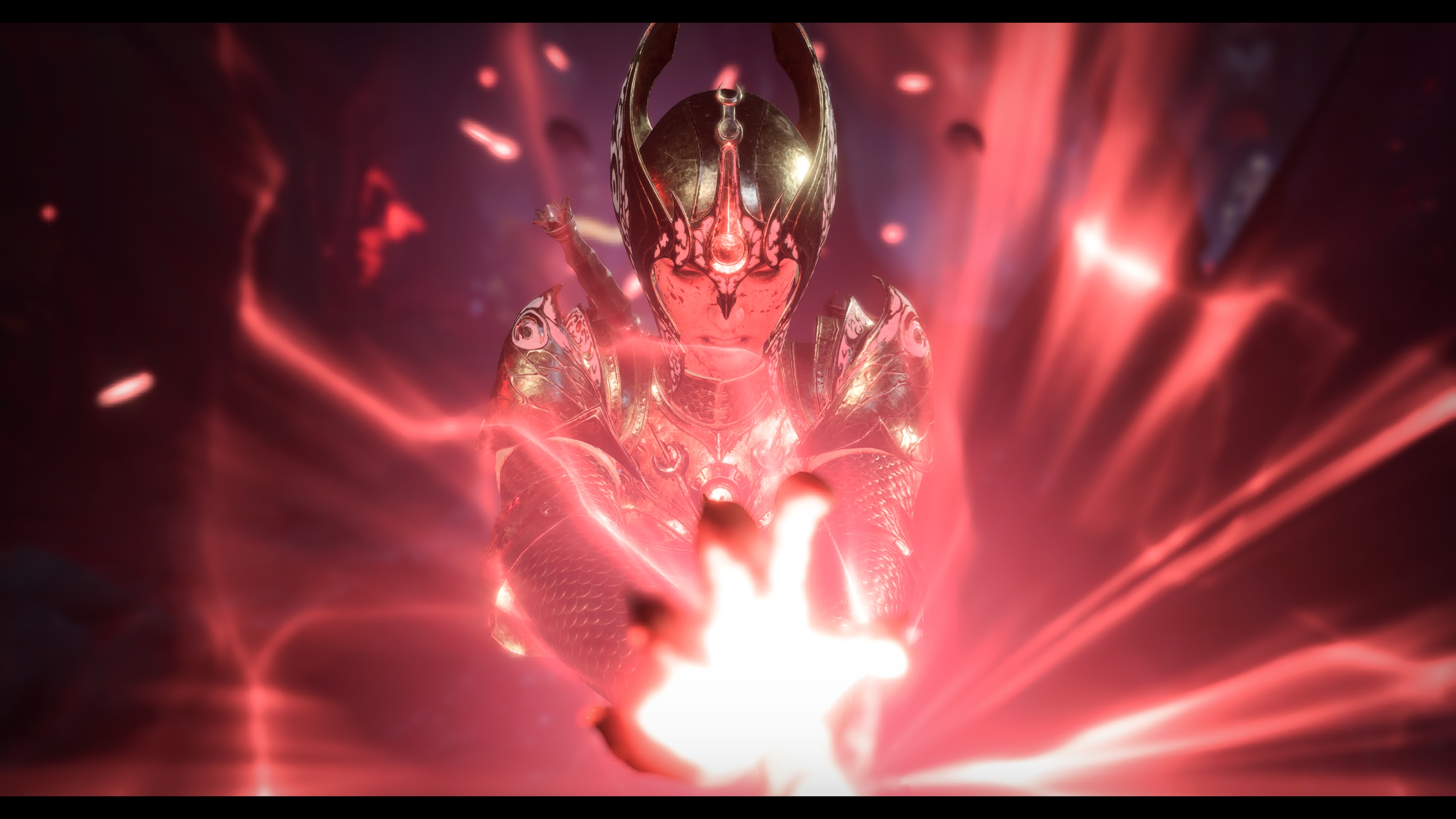
Dialogue and cinematic scenes keep the party position and camera angle fixed. Photo Mode still offers post-processing effects, colour grading, frames and stickers in those moments.
A locked camera during a conversation is therefore a documented scene boundary, not proof that Photo Mode failed. Return to ordinary exploration if you need free positioning.
Troubleshoot mods and missing controls
Patch 8 updated the official toolkit and Photo Mode together, but a mod can still lag behind a live patch. If the tool opens incorrectly, test a new unmodded session before blaming the save.
If only one control layer is missing, reset or inspect the current input bindings. Preserve the campaign save and mod list before removing anything, then re-enable mods one at a time after the native mode works.