
Do this first
- 01Confirm both players are using the supported Steam desktop version.
- 02The host selects Multiplayer, then Host & Play.
- 03Choose the intended character and world and check session options.
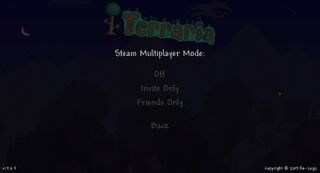
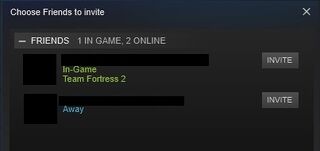
- 04Invite the other player through the Steam friends flow.
- 05If persistent availability is needed, plan a dedicated server rather than leaving Host & Play running.
Choose the right kind of session
The official Wiki separates Host & Play, which runs while the host's game session is active, from a dedicated Terraria server. Pick the first for a small shared play session and the second when the world needs independent availability.
This page specifically covers the PC Steam flow. Do not treat its invite dialog as proof of identical console menus or unrestricted crossplay.
Host and invite
Open Multiplayer, choose Host & Play, then select the intended character and world. Review the session settings before inviting so the guest joins the correct saved world.
Use Steam's friend invitation flow, as illustrated on the official Wiki. If the wrong world was selected, stop and restart with the correct one rather than building progress in an unintended save.
Move to a dedicated server when needed
A dedicated server is a different hosting task with its own configuration, network access and backup responsibilities. The official server guide explains the setup and connection choices.
Plan where the world file lives and who can restart or maintain the server. A hosted game client is not a substitute for a persistent service if the group expects access while its original host is offline.
Diagnose a failed join
Check the host world and session settings, the Steam invitation, and whether the host is still connected before changing network configuration. For a dedicated server, review its address and server status using the official guide.
Do not claim unsupported cross-platform compatibility or tell players to expose ports blindly. The correct fix depends on the hosting mode and platform documented for that session.
Official sources
Host & Play and Steam invite screens for the desktop Steam version.
Official Terraria Wiki · Checked Sep 20, 2026Dedicated-server preparation and troubleshooting; not a cross-platform promise.
Official Terraria Wiki · Checked Sep 20, 2026