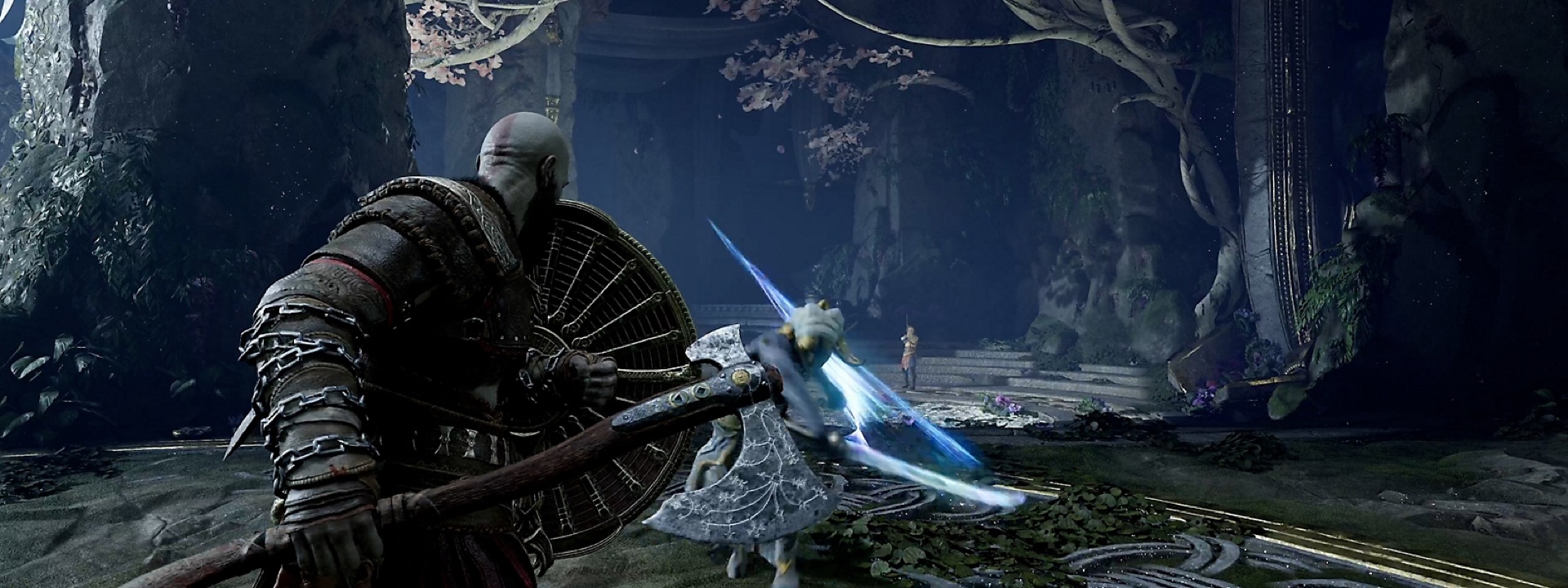
Do this first
- 01Choose difficulty by desired decision pressure, not pride.
- 02Remember the re-selection limit on Give Me God of War.
- 03Use audio cues or high contrast when threats and prompts blend together.
- 04Adjust navigation and traversal assists when route-finding is the blocker.
- 05Change one setting, replay a short encounter and keep what fixes the problem.
Pick the challenge you want
The official FAQ lists five difficulty levels from Give Me Story to Give Me God of War. Give Me Balance is the named normal setting, while the highest setting expects familiarity and has special rules.
Difficulty is a pacing choice. If the player understands the attack but the punishment prevents learning, reducing it can produce better practice than repeating the same opening seconds.
Know the highest-mode restriction
PlayStation states that Give Me God of War can only be selected at the start of a new game. It can be lowered during that save, but cannot then be reselected without restarting.
Treat that as a save-level decision. Keep a manual record before changing it if you may want to preserve the original challenge run.
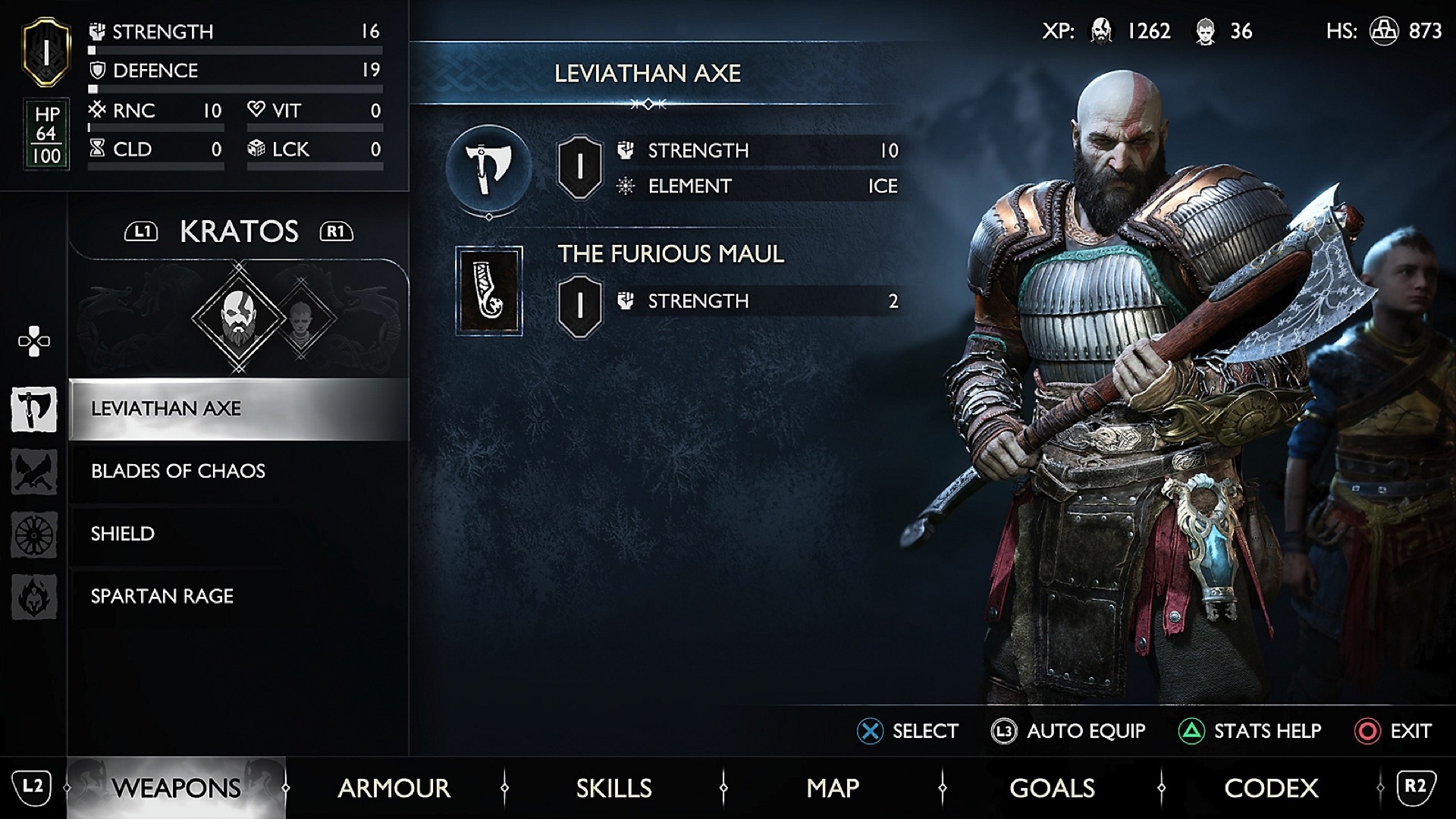
Solve the visible barrier
The accessibility page documents options for audio cues, selected-menu screen reading, contrast, text, camera, navigation, traversal and combat assistance.
Choose the setting that matches the barrier. High contrast helps separation, audio cues can expose prompts, and navigation assistance addresses route direction; none of these is a substitute for an unrelated upgrade grind.
Test settings in a short loop
Change one or two settings and replay a safe traversal or ordinary fight. Confirm that prompts are clearer and inputs remain predictable before continuing a long mission.
If a setting adds too much visual or audio noise, reduce only that layer. Accessibility is a toolkit, not a requirement to enable every option simultaneously.